

 About Us
- Service Principal Application (Recommended)
- AZ CLI credentials
- Interactive browser authentication
- Managed Identity Authentication
Required Permissions
Prowler for Azure requires two types of permission scopes:Microsoft Entra ID Permissions
These permissions allow Prowler to retrieve metadata from the assumed identity and perform specific Entra checks. While not mandatory for execution, they enhance functionality.Assigning Required API Permissions
Assign the following Microsoft Graph permissions:Directory.Read.AllPolicy.Read.AllUserAuthenticationMethod.Read.All(optional, for multifactor authentication (MFA) checks)
Replace
Directory.Read.All with Domain.Read.All for more restrictive permissions. Note that Entra checks related to DirectoryRoles and GetUsers will not run with this permission.- Azure Portal
- Azure CLI
-
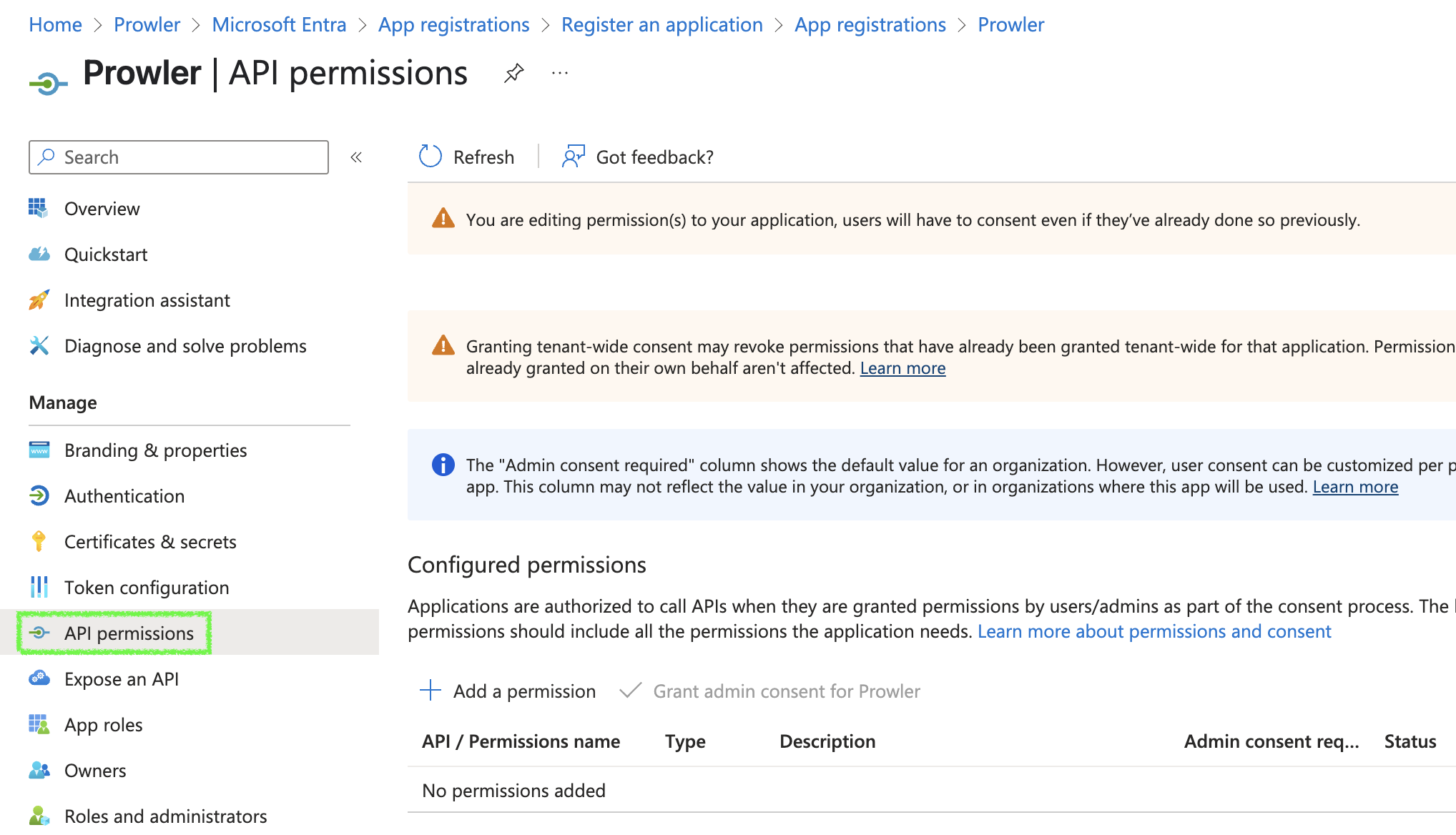
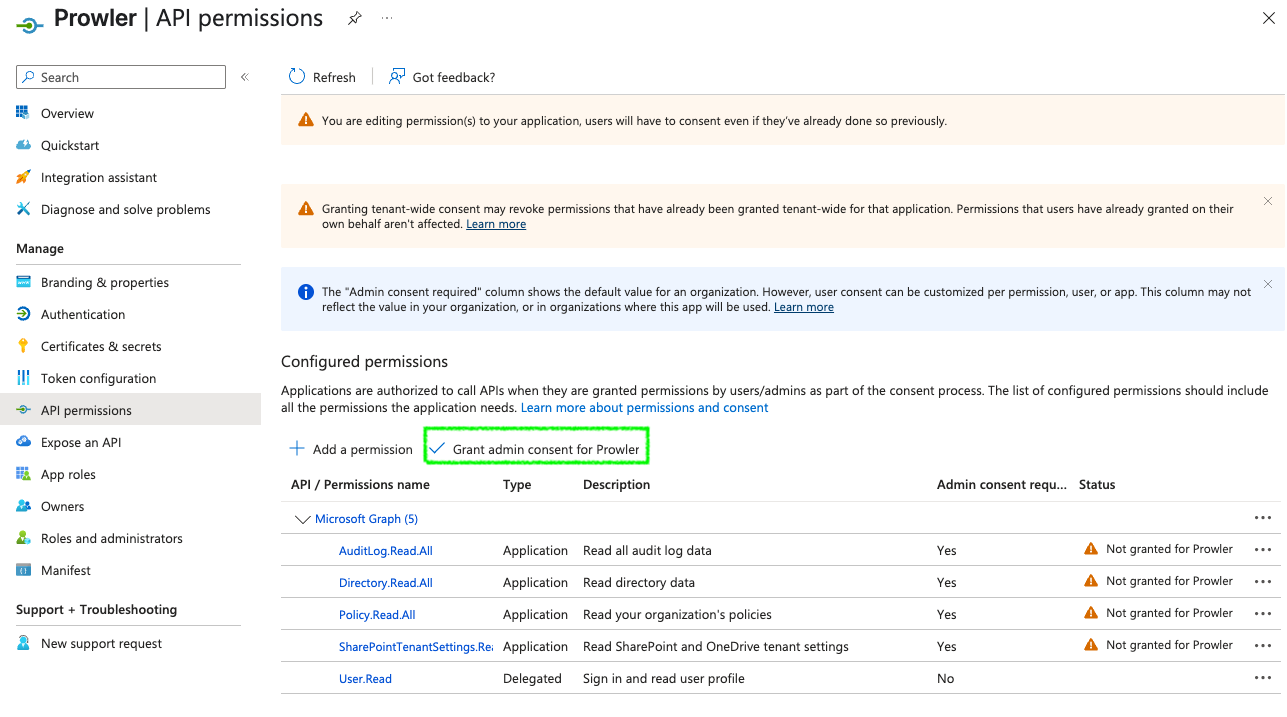
Go to your App Registration > “API permissions”
-
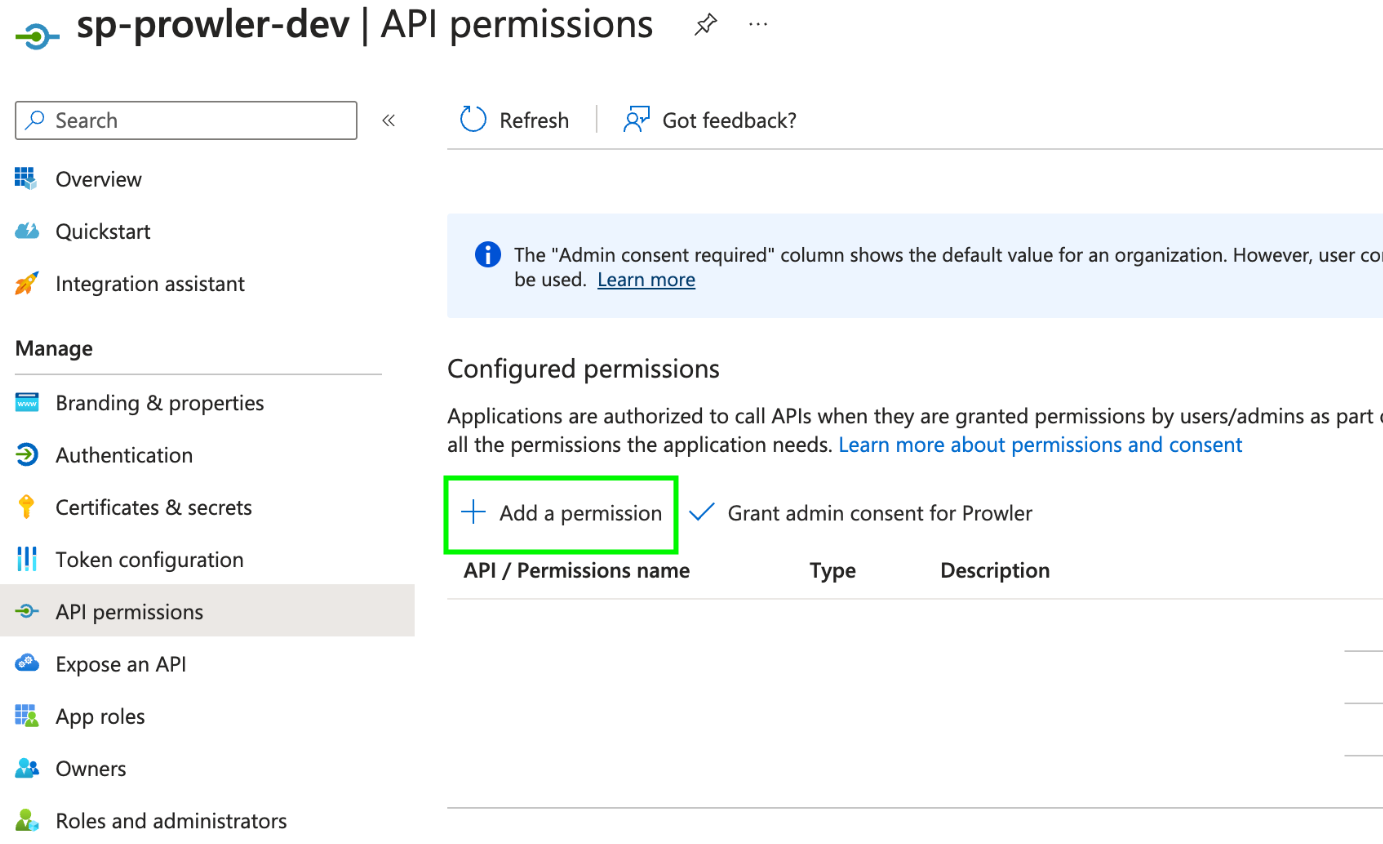
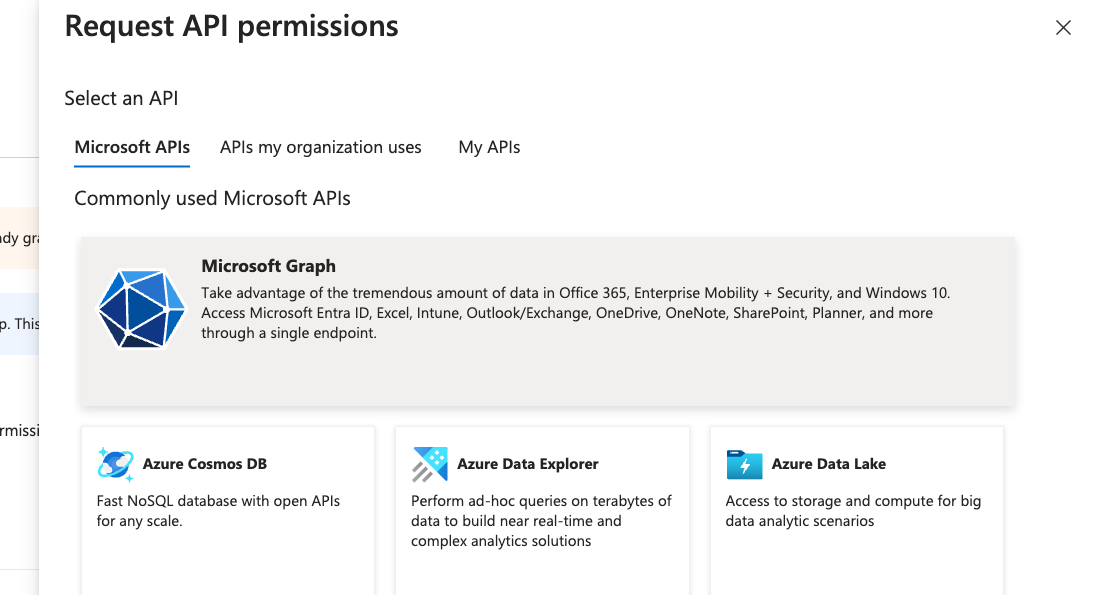
Click ”+ Add a permission” > “Microsoft Graph” > “Application permissions”
-
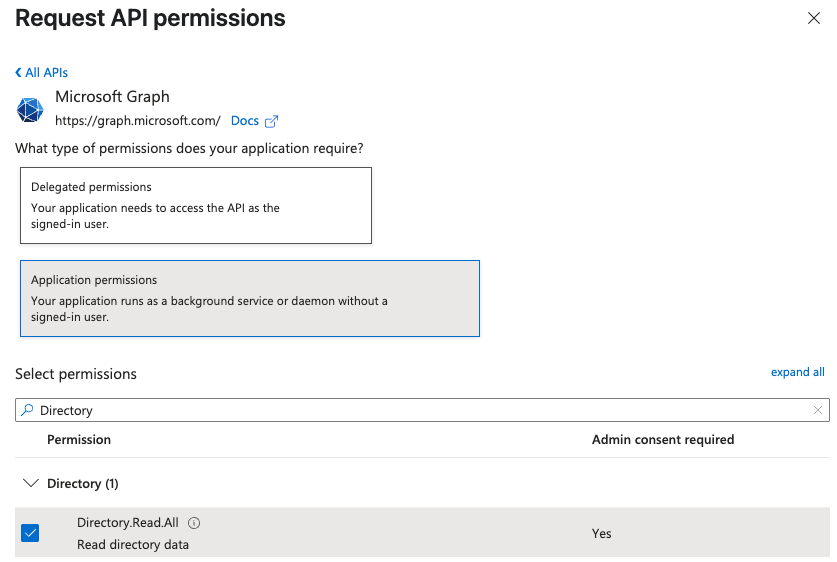
Search and select:
Directory.Read.AllPolicy.Read.AllUserAuthenticationMethod.Read.All
-
Click “Add permissions”, then grant admin consent
Subscription Scope Permissions
These permissions are required to perform security checks against Azure resources. The following RBAC roles must be assigned per subscription to the entity used by Prowler:Reader– Grants read-only access to Azure resources.ProwlerRole– A custom role with minimal permissions needed for some specific checks, defined in the prowler-azure-custom-role.
Assigning “Reader” Role at the Subscription Level
By default, Prowler scans all accessible subscriptions. If you need to audit specific subscriptions, you must assign the necessary roleReader for each one. For streamlined and less repetitive role assignments in multi-subscription environments, refer to the following section.
- Azure Portal
- Azure CLI
- To grant Prowler access to scan a specific Azure subscription, follow these steps in Azure Portal: Navigate to the subscription you want to audit with Prowler.
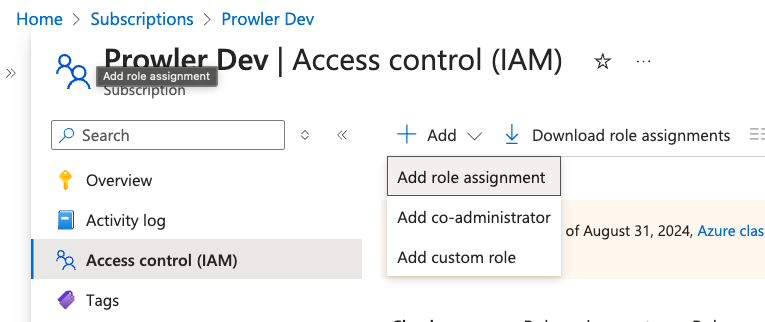
- In the left menu, select “Access control (IAM)”.
- Click ”+ Add” and select “Add role assignment”.
-
In the search bar, enter
Reader, select it and click “Next”. - In the “Members” tab, click ”+ Select members”, then add the accounts to assign this role.
-
Click “Review + assign” to finalize and apply the role assignment.

Assigning “ProwlerRole” Permissions at the Subscription Level
Some read-only permissions required for specific security checks are not included in the built-in Reader role. To support these checks, Prowler utilizes a custom role, defined in prowler-azure-custom-role. Once created, this role can be assigned following the same process as theReader role.
The checks requiring this ProwlerRole can be found in this section.
- Azure Portal
- Azure CLI
-
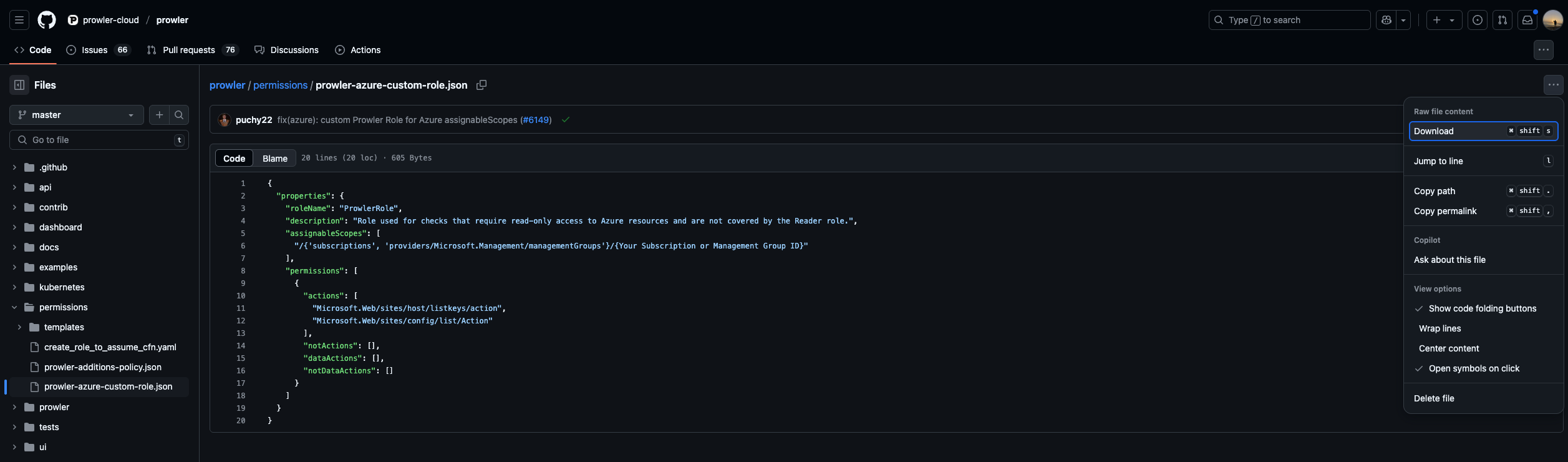
Download the Prowler Azure Custom Role
-
Modify
assignableScopesto match your Subscription ID (e.g./subscriptions/xxxx-xxxx-xxxx-xxxx) -
Go to your Azure Subscription > “Access control (IAM)”

-
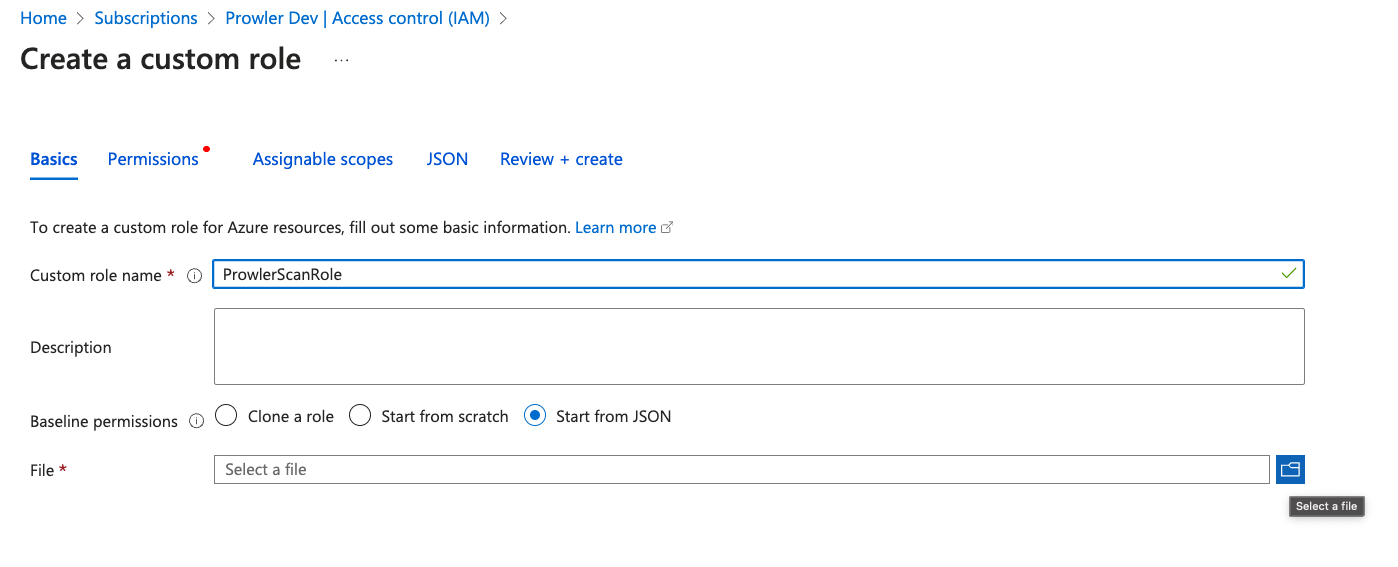
Click ”+ Add” > “Add custom role”, choose “Start from JSON” and upload the modified file
-
Click “Review + Create” to finish

-
Return to “Access control (IAM)” > ”+ Add” > “Add role assignment”
- Assign the
Readerrole to the Application created in the previous step - Then repeat the same process assigning the custom
ProwlerRole
- Assign the
The
assignableScopes field in the JSON custom role file must be updated to reflect the correct subscription or management group. Use one of the following formats: /subscriptions/<subscription-id> or /providers/Microsoft.Management/managementGroups/<management-group-id>.Additional Resources
For more detailed guidance on subscription management and permissions:Checks Requiring ProwlerRole
The following security checks require the ProwlerRole permissions for execution. Ensure the role is assigned to the identity assumed by Prowler before running these checks:
app_function_access_keys_configuredapp_function_ftps_deployment_disabled
Service Principal Application Authentication (Recommended)
This method is required for Prowler App and recommended for Prowler CLI.Creating the Service Principal
For more information, see Creating Prowler Service Principal.Environment Variables (CLI)
For Prowler CLI, set up the following environment variables:--sp-env-auth flag fails if these variables are not set or exported.
AZ CLI Authentication
Available only for Prowler CLI Use stored Azure CLI credentials:Managed Identity Authentication
Available only for Prowler CLI Authenticate via Azure Managed Identity when running Prowler on Azure resources (VMs, Container Instances, Azure Functions, etc.):Prerequisites
Before using Managed Identity authentication, the following steps are required:- Enable Managed Identity on the Azure resource (e.g., VM, Container Instance)
- Assign the required permissions to the Managed Identity on the target subscription(s) to scan
Step-by-Step Setup Guide
Step 1: Enable Managed Identity on the Azure Resource
- Azure VM
- Azure Container Instance
Via Azure Portal:
- Navigate to the VM in Azure Portal
- Select “Identity” from the left menu under “Security”
- Under “System assigned” tab, set Status to “On”
- Click “Save”
- Note the “Object (principal) ID” - this value is required for permission assignment
Step 2: Assign Reader Role to the Managed Identity
The Managed Identity needs the Reader role on each subscription to scan. This role must be assigned to the Managed Identity’s principal ID, not the VM or resource itself.- Azure Portal
- Azure CLI
- Navigate to the target subscription to scan (not the VM’s resource group)
- Select “Access control (IAM)” from the left menu
- Click ”+ Add” > “Add role assignment”
- Select “Reader” role, click “Next”
- Click ”+ Select members”
- Search for the VM name or paste the Managed Identity’s Object/Principal ID
- Select it and click “Select”
- Click “Review + assign”
When scanning a subscription different from where the VM is located, ensure the role is assigned on the target subscription, not the VM’s subscription.
Step 3: Create and Assign ProwlerRole to the Managed Identity
The ProwlerRole is a custom role required for specific security checks. First, create the role if it does not exist, then assign it to the Managed Identity.- Azure CLI
- Azure Portal
Create the ProwlerRole:Assign ProwlerRole to the Managed Identity:
Step 4: (Optional) Assign Microsoft Graph Permissions
For Entra ID (Azure AD) checks, the Managed Identity needs Microsoft Graph API permissions:Directory.Read.All, Policy.Read.All, and optionally UserAuthenticationMethod.Read.All.
Assigning Microsoft Graph API permissions to a Managed Identity requires Azure CLI or PowerShell - it cannot be done through the Azure Portal’s standard role assignment interface.
Step 5: Run Prowler
SSH or connect to the Azure resource and run Prowler:Wait a few minutes after assigning roles for Azure to propagate permissions. Role assignments are not always immediately effective.
Troubleshooting
Error: “No subscriptions were found, please check your permission assignments”
Cause: The Managed Identity does not have the Reader role assigned on any subscription. Solution:- Verify the Managed Identity has the Reader role assigned on at least one subscription.
- Wait a few minutes after role assignment for Azure to propagate permissions.
- Verify role assignments:
Error: “does not have authorization to perform action ‘Microsoft.Resources/subscriptions/read’”
Cause: The Managed Identity lacks the Reader role on the target subscription. Solution:- Ensure the Reader role is assigned to the Managed Identity’s principal ID, not the VM resource.
- Verify the role is assigned on the target subscription to scan, not just the VM’s resource group.
- Check role assignments:
Error: “CredentialUnavailableError: ManagedIdentityCredential authentication unavailable”
Cause: Managed Identity is not enabled on the resource, or Prowler is running outside of Azure. Solution:- Verify Managed Identity is enabled on the Azure resource.
- Ensure Prowler is running from within the Azure resource (not a local machine).
- Check Managed Identity status:
Error: Access token validation failure for Entra ID checks
Cause: The Managed Identity lacks Microsoft Graph API permissions. Solution:- Assign the required Graph API permissions as shown in Step 4.
- These permissions are optional for basic resource scanning but required for Entra ID security checks.
Browser Authentication
Available only for Prowler CLI Authenticate using the default browser:
Note: The tenant-id parameter is mandatory for browser authentication.